Terms of Service for Equipment Tracker Pro
Effective Date: September 30, 2026
Updated September 25, 2026: Section 20 now describes the web page each created invoice has, which a customer opens from the link you send and which shows the whole invoice; says that a pay link already sent stops taking payments once Pay online is switched off; and says that you agree to the platform fee with a tick box before online payments are set up. Previously updated September 24, 2026: added Section 20, which covers taking payment on your invoices — online by card or bank through your own Stripe account, and by PayPal or Venmo links — and sets out Equipment Tracker's platform fee on online payments: 0.5% of each payment, never more than $10 on one payment, on top of Stripe's own fees. Previously updated September 7, 2026: checked line by line against the software and corrected throughout. Section 3 now says that AI features and a subscription both need a signed-in account, that a diagnostics conversation is one scan for 50 messages or 24 hours rather than for as long as you keep asking, and that a subscription bought on this website is managed by Stripe rather than by RevenueCat. Section 5 no longer claims that a new unit's serial number is checked across your whole database when you save it. Section 6 now says who may package and restore a ZIP, and that a spreadsheet export exists. Section 8 now names the refrigerant leak-rate flag and the damper inspection certification the app produces from figures you entered. Section 9 now covers service requests and tool check-outs as well as completed service, who on your crew may accept one, and what accepting takes off your stock. Section 10 now lists what a public page really carries, that a code on a building publishes the whole site's asset list, what a tenant request code accepts and when, and how each of the two tenant alert lists falls back to the vendor check-in contacts on its own. Section 19 now sets out what transferring a location to another account hands over, and that the six-character code is the whole of the credential. Nothing about the software changed for any of this; the document was describing it wrongly or not at all. Previously updated August 29, 2026: corrected Sections 10 and 19, which said invoices and payment records are "visible only to you and to a Manager". That is true of what the app SHOWS — a Tech and a Viewer have no invoice screen — but not of the data: invoices synchronise onto every Team Member’s device along with the rest of the workspace so the app works offline, and both sections now say so. Nothing about the software changed; the sentences were describing it wrongly. Previously updated August 21, 2026: corrected Section 18 to say when the one-time opt-in confirmation is actually sent — it goes out when your number is added to a building's vendor check-in contact list, and a number added only to a tenant request alert list does not receive one — and corrected Sections 10 and 19, which said a Viewer can see everything in a workspace: invoices and payment records are visible only to the Workspace Owner and a Manager. Previously updated August 16, 2026: revised Section 3 to state that the free scan allowance is shared across every AI feature, Section 10 to cover unit and tenant records and how tenant request alerts are routed, Section 18 to include tenant request alerts in the SMS program and to correct the opt-in description — you opt in yourself on the opt-in form, and no invitation text is ever sent — Section 6 to name the sharing feature by the label it actually carries in the app ("Send to User"), and Section 19 to cover units, tenants, tenant requests and who may transfer a building. Previously updated August 11, 2026: revised Section 10 to cover what a public QR page discloses, the per-building control over it, and tenant service request submissions. Previously updated July 24, 2026: added Section 19 (Team Workspaces) and revised Sections 2, 6, 7, 10, and 14 to cover multi-user access to a workspace owner's data.
1. Acceptance of Terms
Equipment Tracker Pro is owned and operated by Jonathan M. Curtis. By downloading, installing, accessing, or using Equipment Tracker — including the mobile application or the web dashboard at equipment-tracker.com — you agree to be bound by these Terms of Service. If you do not agree to these terms, do not use the app or web dashboard.
2. Use of the App
Equipment Tracker allows HVAC technicians and service professionals to log equipment, capture nameplates via AI scanning, track parts and maintenance history, manage site inventory, dispatch work orders, share data with other technicians, and share a workspace with team members (see Section 19). You are responsible for ensuring you have the right to capture and share data regarding the equipment, locations, and customer information you enter into, or make available to others through, the app. You agree not to use the app for any unlawful purpose.
3. Subscriptions & Billing
Certain features require an active Pro subscription, including but not limited to: unlimited AI nameplate scanning, cloud backup and restore, peer-to-peer equipment sharing, professional report generation, and access to the web dashboard. AI features and subscriptions both require a signed-in Equipment Tracker account, and a guest or anonymous sign-in does not count: the free scan allowance is counted against your account, and a subscription is attached to the account that buys it so that it can be restored when you change devices. Free users receive 10 complimentary AI scans to evaluate the AI features. That allowance is shared across all of them — nameplate scanning, AI Condition Scan, invoice and work-order scanning, and AI Diagnostics all draw from the same ten. A diagnostics conversation costs one scan for the session, however many follow-up questions you ask within it — up to 50 messages, or 24 hours from the message that was charged, whichever comes first. Past either limit the next message starts a new conversation and costs another scan, and if your ten are already spent it is refused. Free accounts are also limited to 60 AI requests a day across all of these features (an attempt that has to be retried counts as more than one); a Pro subscription has no daily limit. To ensure fair usage and prevent abuse, these free trial scans are strictly limited to ten (10) lifetime scans per individual and per physical device. Evasion of these limits (including but not limited to the registration of multiple throwaway accounts on a single physical device to obtain additional free scans) constitutes a violation of these Terms and may result in the immediate suspension or termination of your account or access to the scanning services.
Subscriptions may be purchased through Google Play Billing (Android), the Apple App Store (iOS), or via web checkout powered by Stripe. Subscriptions bought on the App Store or Google Play are managed by that store, and their entitlement is verified through RevenueCat. Subscriptions bought on this website are managed by Stripe: you change or cancel them from the Account page of the web dashboard. Either way the result is recorded on your Equipment Tracker account, and that record is what the app and the dashboard read to unlock Pro. Subscriptions automatically renew unless canceled at least 24 hours before the end of the current billing period. You can manage or cancel your subscription at any time through your Google Play or Apple App Store account settings, or through your web account settings. No refunds will be provided for partial billing periods.
If a free trial or introductory offer is available, it will be displayed on the subscription screen. Upon expiration of the trial period, your subscription will automatically convert to a paid subscription at the standard rate unless canceled beforehand.
Team plans are sold in seat tiers. Changing your seat tier adjusts your subscription price on a prorated basis, and you must remove members before downgrading to a tier with fewer seats than you currently have people.
4. AI Scanning & Data Accuracy
The AI-powered nameplate scanner uses optical character recognition (OCR) to extract technical data from equipment labels. We do not guarantee the accuracy of AI-extracted data. You are solely responsible for verifying all model numbers, serial numbers, electrical specifications, refrigerant types, and other data before ordering parts, servicing equipment, or relying on this information for any purpose. Misidentified data may result in incorrect parts, unsafe electrical configurations, or equipment damage.
5. Duplicate Detection
The app checks for likely duplicates as a convenience. On the phone, re-scanning the nameplate of a unit you already have checks the scanned serial number against every location in your database; saving a NEW unit checks its serial number and its name only against the units already at that location, not against the whole database, and that check happens when you save rather than when you scan. The web dashboard does not check a new unit for duplicates at all. Elsewhere, a spare part filed against a location's general stock is matched against the profiles already there, a repeated invoice number is shown to you but never prevented, and a unit shared with you that matches one you already have asks whether to skip it or merge it. We do not guarantee the completeness or accuracy of duplicate matching. You are responsible for verifying equipment identity.
6. Data Import, Export & Sharing
The Workspace Owner may package the whole database as a ZIP archive, and restore from a compatible ZIP, on the phone at no charge; a Team Member can do neither, and their Settings screen says so. Exporting a single unit's records and files as ZIPs requires Pro, and so does exporting your equipment or your stock as a CSV spreadsheet, from the Inventory screen on the phone or the Inventory page of the web dashboard. You may import a CSV spreadsheet on the phone and on the web dashboard. When sharing equipment data with other technicians via the "Send to User" feature, you are responsible for ensuring you have the authority to share that information. Imported data will be merged into your local database, and you are responsible for verifying its accuracy. Team workspaces are a separate feature covered by Section 19; the same requirement to have authority to share information applies there, and it applies to every member of a workspace, not only to the account holder.
7. Web Dashboard
The web dashboard at equipment-tracker.com is a Pro feature that allows you to view and manage the cloud-synced equipment data in your workspace in a browser. The web dashboard reads from and writes to the same Firestore database used by the mobile app. Changes made in the web dashboard (such as editing equipment specs, adding maintenance logs, modifying inventory, or deleting records) are reflected in the mobile app upon its next sync. You are responsible for any changes you make via the web dashboard; if you are a Team Member, those changes affect the Workspace Owner's records. See Section 19.
8. Maintenance Records
The app allows you to log service history including work orders, refrigerant tracking, labor hours, and before/after photographs. These records are for your personal or professional reference only. The app also calculates from what you enter: it flags a refrigerant addition that may trigger a federal leak-repair obligation (systems holding 15 lb or more of an HFC refrigerant, or 50 lb or more of an ozone-depleting refrigerant, at a 10%, 20% or 30% annual leak rate depending on the appliance class), and it prints a fire and smoke damper inspection report that ends in a certification statement over the inspector's name. Those thresholds are United States federal law and the app does not calculate the equivalent obligation under any other country's rules. Every one of these outputs is computed from figures you entered, and the certification is your statement, not ours. We are not responsible for regulatory compliance related to refrigerant handling, EPA reporting, NFPA inspection, or any other industry-specific requirements.
9. Guest Technician Service Submissions
Equipment Tracker Pro allows third-party technicians ("guests") to submit records through a public-facing web form accessible by scanning a Link Mode QR code on a piece of equipment, a part or a tool. On equipment and parts the form offers two things: "Log Completed Service", a record of work the guest says they have already done, and "Request Service", a report of a problem or a request for work to be done, which you can turn into a work order. On a tool it offers "Tool Check-In/Out", which, once you accept it, changes who the app records as having the tool. By enabling a Link Mode QR code and making it physically accessible, you acknowledge that any person who scans that code may submit any of these through the form while your Pro subscription is active. All guest submissions are held as pending records — in the Transfer Inbox on the phone and under the "Guests" tab of the Inbox on the web dashboard — and are not automatically added to your maintenance history. Every member of your workspace can read them, and you, a Manager or a Tech can accept, convert or decline one; a Viewer cannot. You are responsible for reviewing guest submissions for accuracy before anyone in your workspace accepts them into your records. Accepting does more than add a record. The form shows a guest the stock the app holds for that unit's parts and lets them mark parts as used and refrigerant as added from one of your cylinders; when you accept, those parts are taken off that location's stock, the refrigerant is taken off the cylinder or the location's refrigerant stock and written into the unit's EPA leak-rate record, and the accepted entry — the guest's name, company, date, type, description and parts used — is published to the unit's public QR page. The app tells you of any deduction it could not make. Equipment Tracker Pro makes no representations regarding the accuracy or completeness of guest-submitted data.
10. Customer & Site Information
If you store customer names, contact information, billing addresses, or other personally identifiable information within the app's building/site info features, you are responsible for complying with applicable privacy laws regarding the collection, storage, use, and disclosure of that data.
That responsibility stays with you when you invite other people into your workspace. You decide who is invited and what role they are given; you are responsible for having the authority to make your customers' information available to them, for their conduct while they have access, and for removing their access when it should end. Where you use Equipment Tracker to store information about your own customers, you decide what is collected and why (you are the controller of that information) and we process it only to provide the service to you (we act as your processor). We do not review, approve, or limit who you invite, and we are not a party to your relationship with the people you invite or with your customers.
A Team Member's access is not limited by building or by customer. Every member you invite — including a read-only Viewer — can see all customer and site information in your workspace. Invoices and payment records are the one exception: they are shown only to you and to a Manager, and a Tech or a Viewer cannot open or raise them in the app. That restriction is on what the app displays. Like every other record in your workspace, invoices are still copied to each member's device so the app can work offline — see Section 19. If you do not want a person to see a customer's contact or billing details, do not invite them to your workspace. See Section 19.
Publishing a Link Mode QR code makes information public. A page behind a Link Mode code can be opened by anyone who scans that code, with no account and no sign-in. By default the page carries the building's street address and the building contact's name, telephone number and email address, alongside the equipment's specifications, its floor, unit and location inside the building, whatever you have typed into the unit's Notes, its parts with how many spares are on hand and where they are kept, any spare replacement units in stock and where they are kept, and its service history with the name and company of each technician and the parts they used. A guest reporting refrigerant use is also shown that location's refrigerant cylinders by name, with the pounds remaining in each. The customer name you entered for the building is written into the same publicly readable record, although the page does not display it. Publishing a code is your decision and the disclosure it makes is your responsibility — including where the contact is a private individual rather than a business, as at a residential address.
A code on a building publishes the whole site's asset list. Link Mode codes can be made for a single unit, for a part, and for a building. A building's page is a directory: it lists every piece of equipment recorded at that location by name, type, manufacturer, model number and record identifier, and each row links through to that unit's own public page. Where the building also has a vendor check-in code, the page carries a link into the check-in form as well. Publishing a building code therefore publishes considerably more than one machine. The same per-building "Show site info on QR codes" control described below is what withholds the address and the contact details from it.
The app provides a per-building control for this. Clearing "Show site info on QR codes" in a building's Site Info withholds the address and contact details from that building's pages, rewrites pages already published for it, and shows anyone scanning a notice that site information is turned off. Everything else remains visible: the equipment's specifications, its floor, unit and location inside the building, its Notes, its parts with their stock counts and storage locations, the refrigerant cylinders offered to a guest reporting refrigerant use, and the service history with each technician's name and company. Where you publish codes at residential addresses, or anywhere the contact is an individual, you are responsible for deciding whether that control should be on.
Units and tenants. If you record the units in a building and who is in each of them, you are entering another person's name, telephone number, email address and notes into the app. That person is typically not a party to these Terms and has not agreed to anything. You are responsible for having a lawful basis to hold those details, for the accuracy of what you record, and for keeping it current when a tenancy ends. Every member of your team, in every role, can see it. It is never published to a QR page or a tenant tag page.
Tenant service request codes. If you print a tenant request code and put it on a door, any person who scans it may — while that code's "Accept tenant requests" switch is on and your Pro subscription is active — submit a description of a problem, optionally their name and, where the code is not already tied to one unit, which unit they are in, and up to three photographs of the inside of a property. The app accepts one request per code per hour. Turning that switch off, or the building's "These QR codes are active" switch off, makes a scanned tag say it is not active, and no request can be sent. The form does not ask for a telephone number or an email address; where you have recorded a tenant against that unit, we read the contact details already on file and attach them to the request so that you can call back. Those submissions and their photographs are stored in your workspace and are visible to you and to every member of your team. You are responsible for handling them lawfully, for deciding who in your workspace should have access, and for telling residents what putting that tag on their door means. Alerts about a tenant request go to the tenant notification lists you set for that building. The email list and the text-message list are separate and each falls back on its own: if you have set no tenant email list, the alert email goes to that building's vendor check-in email addresses, and if you have set no tenant telephone list, the alert text goes to the vendor check-in numbers, so that a report is not lost. If you do not want a resident's report reaching a vendor contact, set both tenant lists. You also receive a push notification on your own phone for every request, unless you have turned "Guest QR Submissions (Push)" off in the app's notification settings.
If you join someone else's workspace as a Team Member, you may use the information in that workspace only to perform work for the Workspace Owner, and the obligations in Section 19 apply to you.
11. Intellectual Property
All content, features, and functionality of Equipment Tracker — including but not limited to the user interface, design, code, and branding — are the exclusive property of the developer and are protected by applicable intellectual property laws. You may not reproduce, distribute, or create derivative works without prior written consent.
12. Limitation of Liability
To the maximum extent permitted by applicable law, we are not liable for any physical damage, equipment failure, financial loss, personal injury, or any direct, indirect, incidental, or consequential damages resulting from your reliance on data stored, shared, imported, exported, or generated within this application or the web dashboard. This includes but is not limited to damages resulting from AI scanning errors, data corruption during import/export, cloud synchronization failures, or incorrect maintenance records.
13. Disclaimer of Warranties
Equipment Tracker is provided on an "as is" and "as available" basis without warranties of any kind, either express or implied, including but not limited to implied warranties of merchantability, fitness for a particular purpose, or non-infringement.
14. Termination
We reserve the right to suspend or terminate your access to the app and web dashboard at any time, without prior notice, for conduct that we believe violates these Terms or is harmful to other users, us, or third parties. Upon termination, your right to use the app and web dashboard ceases immediately. You may also delete your account at any time from within the app. A Workspace Owner may also remove a Team Member from their workspace at any time. Removal ends that member's access to the workspace immediately; erasing the copy already downloaded to their device depends on that device connecting to the internet, as described in Section 19.
15. Modifications to Terms
We reserve the right to modify these Terms of Service at any time. Changes will be posted on this page with a revised effective date. A change to the platform fee in Section 20 is posted at least 30 days before it applies. Your continued use of the app or web dashboard after any changes constitutes your acceptance of the new terms.
16. Governing Law
These Terms shall be governed by and construed in accordance with the laws of the State of Michigan, United States, without regard to its conflict of law provisions. Any disputes arising under these Terms shall be subject to the exclusive jurisdiction of the courts located in the State of Michigan.
17. Contact Us
If you have any questions or suggestions about our Terms of Service, do not hesitate to contact us at: support@equipment-tracker.com
18. SMS Messaging Program Terms
Equipment Tracker Pro (owned and operated by Jonathan M. Curtis) offers automated SMS alerts to notify designated contacts about activity at a building they are responsible for: when a vendor or contractor checks in or out of a facility, and when a resident submits a service request from a tenant tag. By opting in to receive SMS notifications (such as vendor check-in/check-out alerts), you agree to these Terms of Service.
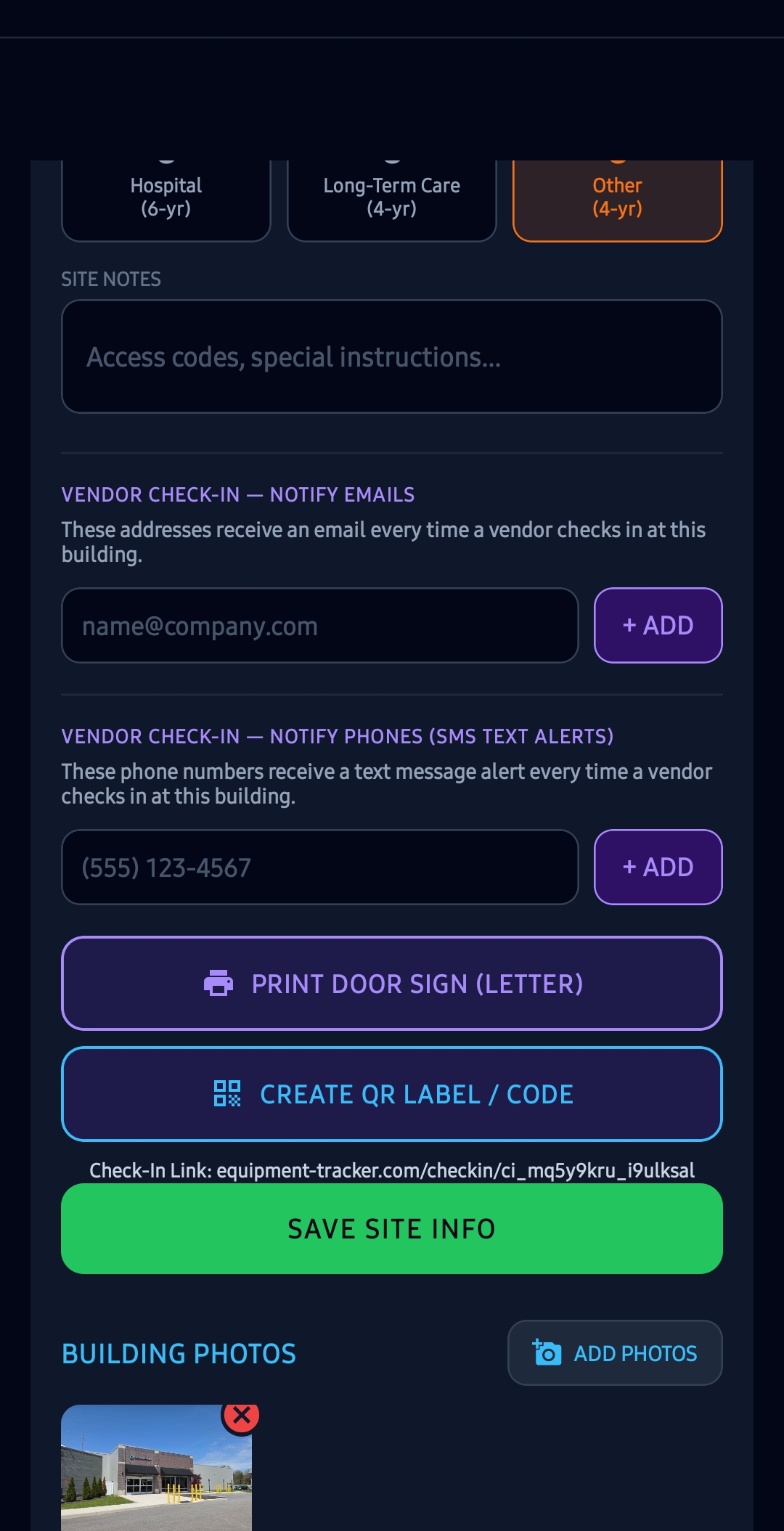
- Opt-In Process: You opt in yourself, by completing the SMS Notification Opt-In form at https://equipment-tracker.com/sms-opt-in: enter your name, company and mobile number, tick the consent statement, and press Confirm Opt-In & Consent. A designated contact may also be added by an authorized building manager in the Equipment Tracker Pro portal, but a number added there is saved and stays silent — we send no text of any kind to a number that has not completed the opt-in form. Once consent is on file, a one-time confirmation that you have opted in is sent when your number is added to a building's vendor check-in contact list. That confirmation is tied to the check-in list only: if your number is added solely to a building's tenant request alert list, no confirmation is sent, and the first message you receive is a tenant request alert. Consent is not a condition of purchase. A screenshot of the portal where phone numbers are entered is publicly viewable at: https://equipment-tracker.com/vendor-checkin-screenshot.jpg.
- Opt-Out Instructions: You can cancel the SMS service at any time. Just text STOP to the sending number. After you send the SMS message "STOP" to us, we will send you an SMS message to confirm that you have been unsubscribed. After this, you will no longer receive SMS messages from us. If you want to join again, reply START, YES or UNSTOP to the same number, or complete the opt-in form again at https://equipment-tracker.com/sms-opt-in. Asking your facility manager to re-add your number will not restart the messages on its own.
- Help Instructions: If you are experiencing issues with the messaging program, you can reply with the keyword HELP for more assistance, or you can get help directly at support@equipment-tracker.com.
- Intermediary Carrier Liability: Carriers are not liable for delayed or undelivered messages.
- Rates & Frequency: As always, message and data rates may apply for any messages sent to you from us and to us from you. Message frequency varies based on building activity. If you have any questions about your text plan or data plan, it is best to contact your wireless provider.
19. Team Workspaces
A Team subscription lets you (the "Workspace Owner") invite other people ("Team Members") into your workspace using an invite code. Invite codes are not tied to a specific email address and expire 48 hours after they are generated — anyone who obtains a code before it is used or expires can join your workspace. Treat an invite code like a password.
What a Team Member can see. Every Team Member, in every role, can read all of the data in your workspace: equipment, parts, maintenance records, inventory, tools, work orders, PM schedules, photographs, and building and site information — including customer names, contact details, and billing addresses. Access cannot be limited to particular buildings or customers. Invoices and payment records are the one exception — the app shows them only to you and to a Manager, and a Tech or a Viewer has no screen from which to read or raise one. Be aware that the restriction is in the app, not in the copy of the data. Every record in your workspace, invoices included, is synchronised onto each Team Member's device so that the app keeps working without a signal. If your pricing must never reach a technician's phone at all, do not invite them to a workspace that holds invoices. Apart from that, roles control what a member can change, not what they can see:
- Viewer — cannot change records, but can view everything in the workspace apart from invoices and payment records, and can export, print, and send workspace data using the app's export, reporting, and sharing features.
- Tech — everything a Viewer can do, plus create, edit, and delete equipment, parts, maintenance logs, inventory, tools, and PM schedules; create and edit work orders; record the units in a building and rename them; and accept, reject or delete tenant service requests. A Tech cannot set or change who is in a unit — the tenant's name, telephone number and email address are treated as customer information and are reserved to a Manager. A Tech also cannot see or raise invoices.
- Manager — everything a Tech can do, plus edit building and customer information, including who is currently in a unit and their contact details; edit the company profile; manage check-in and tenant notification contact lists; delete work orders; view, raise, issue, send and void invoices and record payments against them; and view and revoke pending invite codes. Only the Workspace Owner can generate a new invite code, and only the Workspace Owner can transfer a building to somebody else.
Data on Team Members' devices. When a Team Member joins from the mobile app, the app erases the data already on that member's device and downloads a copy of the workspace — including customer and billing information and photographs — onto that device so the app works offline. Members who use only the web dashboard do not receive a persistent local copy.
Transferring a location to another account. Only the Workspace Owner can start a transfer. Starting one assembles a copy of everything filed under that location — its equipment and tools, their parts and photographs, the service history, the general stock, the inventory, the PM schedules, the work orders, the tool check-out history, and the site information, which includes the customer's name, the street address and the contact's name, telephone number and email address — and puts it behind a six-character code that expires after seven days.
Possession of that code is the whole of the credential. It is not tied to an email address and there is no invitation to accept: whoever types it into Equipment Tracker first receives the location and everything listed above. Send it the way you would send a password, and cancel it from the same screen if it goes astray.
When a transfer is claimed, the QR labels already fixed to that location's equipment begin pointing at the new owner's records, and guest submissions scanned from those labels reach them rather than you. Your own copy of the location stays in your account until you delete it. As under Section 10, you are responsible for having the authority to hand that customer's information to the account you are transferring to.
Leaving or being removed. A Workspace Owner may remove a Team Member at any time, and a Team Member may leave at any time. Removal ends the member's access to the workspace immediately. When a Workspace Owner removes a member, we also send a silent command to that member's phone telling the app to erase the workspace copy immediately. That command only arrives if the device is online and has push notifications registered, and we cannot confirm that the erase completed. If it does not arrive, the copy remains on that device until the app next runs with an internet connection. We have no other means of reaching that device. Data a member has already exported, printed, or sent elsewhere is not affected by removal.
If you join a workspace, the data in it belongs to the Workspace Owner and their customers. You may use it only to do work for that Workspace Owner. You must not copy, export, retain, or disclose it for any other purpose, you must not take steps to prevent or reverse the erasure described above, and you must delete or return any workspace data still in your possession when your access ends. The copy downloaded to your device is an automatic function of the app and gives you no right to that data.
Subscriptions. Team Members receive Pro features through the Workspace Owner's subscription. If that subscription ends, lapses, or the number of members exceeds the seat limit, Pro-only functions stop working for every member. Ending a subscription does not by itself remove Team Members from a workspace — removing members whose access should end is always the Workspace Owner's responsibility.
Your own sticker address. A Workspace Owner or a Manager on a Team plan may have the workspace's live QR codes and tags use a web address the workspace owns (for example tags.yourcompany.com). By saving one you confirm that you own or control that domain and are entitled to point it at our service. You are responsible for the domain itself: its registration and renewal, and the DNS records you add, keep or remove. We connect the address on our side automatically and may refuse or disconnect one that imitates another business, infringes someone else's rights, or is used to mislead the people who scan your codes. Stopping use of the address, or changing it, disconnects it from our service, and codes already printed with it stop opening our pages unless you point the domain somewhere that answers them. Ending your subscription does not disconnect it by itself; if your account is deleted or terminated under Section 14, we may disconnect it. You may download a copy of your workspace's public sticker pages at any time and host that copy wherever you choose. It holds the customer and site information those pages publish, so Section 10 applies to what you do with it.
20. Taking Payments on Invoices
You can let your customers pay the invoices you create in Equipment Tracker in three ways. Each one is switched on or off separately in Company Profile, and switching one off only stops it being printed on your invoices.
Online by card or bank (Stripe). Online payments run through a Stripe account that belongs to your business, not to us. You set it up from Company Profile, and Stripe collects your business details, identity documents and bank account itself. When you do, you enter into Stripe's own agreements directly with Stripe — the Stripe Services Agreement and the Stripe Connected Account Agreement — and Stripe decides whether to accept your business, when it pays you, and whether to hold or reverse a payment. Equipment Tracker never holds, receives or transmits your customers' money: a payment goes from your customer to your Stripe account, and Stripe pays it out to your bank.
What it costs. Two separate fees come out of each online payment, and Stripe deducts both before paying you:
- Stripe's processing fees, which Stripe charges your business under its own pricing, shown when you sign up and at stripe.com/pricing. For a card payment in the United States that is currently 2.9% + 30¢, and for a bank (ACH) payment 0.8%, at most $5. We do not set these and we receive none of them.
- Equipment Tracker's platform fee: 0.5% of each online payment, never more than $10 on one payment. Stripe takes it from the payment and pays it to us. The rate in force is shown in Company Profile, beside the button that sets up online payments, before you connect and whenever you look.
Neither fee is added to what your customer pays: your customer pays the amount owed on the invoice, and the fees come out of what reaches you. The platform fee is not refunded when you refund a payment, and Stripe decides whether its own fees are. We will post any change to the platform fee on this page, and show it in Company Profile, at least 30 days before it applies to a payment. You can stop taking online payments at any time by switching Pay online off in Company Profile, and you can close your Stripe account with Stripe.
Refunds, disputes and chargebacks are between you, your customer and Stripe. You issue refunds and answer disputes in your own Stripe account; we cannot do either for you.
The invoice's web page. Every invoice you create has a web page of its own, and SEND TO CUSTOMER sends its link. The page shows the whole invoice — your business name, telephone number and email address, who it is billed to and their address, every line, the totals, your note to the customer and the payments recorded against it — and each way to pay that is switched on for it. Anybody who has the link can open it, so send it only to the customer the invoice is for.
How a payment is recorded. Pay online is offered only while the invoice has been created, has not been voided, still has money owed, and Pay online is switched on both in Company Profile and on that invoice. Switching it off stops a link you already sent from taking a payment as well. A payment made online is recorded on the invoice automatically, as a payment by card or by bank, with the date and Stripe's reference. Your customer's card or bank details are entered on Stripe's own page; they never pass through Equipment Tracker, and we never see or store them. Before online payments are set up, you tick a box agreeing to this section, including the platform fee, and we keep a record of that agreement and of the rate in force when you agreed.
PayPal and Venmo. If you enter a PayPal or Venmo username in Company Profile, your invoices carry a link and a QR code that open PayPal or Venmo with the amount owed filled in. A payment made that way goes directly from your customer to you under PayPal's or Venmo's own terms; we are not a party to it, take no fee from it, and are not told about it, so record it against the invoice yourself. Venmo's terms require a Venmo business profile to accept payment for goods and services.
Your responsibilities. You are responsible for the amounts on your invoices, for any sales tax on them, for reporting the income you receive, and for complying with the terms of whichever payment service you use.